Pete adds frictionless access to all Ohio’s Statehouse data inside familiar tools. His next-generation
AI policy research engine eclipses anything else on the market.
Pete works best as a team member inside the apps you already use: Claude, ChatGPT and Microsoft
Outlook. Two minutes and he’s on your team. If you’re a Statehouse
pro, you’ll want to see Pete fly: connect him to your apps below.
Claude and ChatGPT
Advanced policy research, advocacy intelligence, and LSC-style bill and amendment drafting. Pete also does a spot-on impression of any sitting Ohio legislator, because he’s trained on every word of the public record: every committee appearance, chamber speech, vote and media hit. Ask him to write proponent testimony tuned for the personalities in the room, or ask him the odds of your bill passing.
Connect Pete to ClaudeDesktop app or claude.ai.
2-minute setup. Connecting Pete to Claude is great for everyday questions too, but Claude tends to
excel at the deep research that compiles advanced Cap Square intelligence. Analyze a timeline of everything
that’s moving a particular bill: who is getting paid by whom, how much, and how do those payments sync up
with action on that bill in committee? In short, with Pete the Pigeon plugged into Claude, you’ll be the
smartest person in the room, see things nobody else can see, and make the connections the slow AI adopters
wouldn’t pick up on in a hundred years.
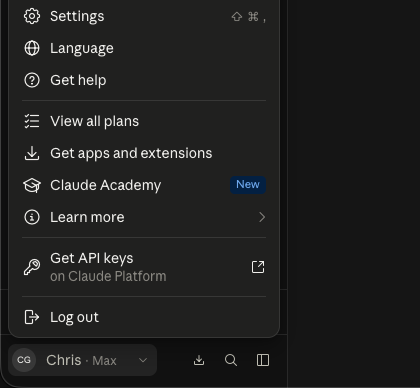
Click your name, lower-left, then Settings.
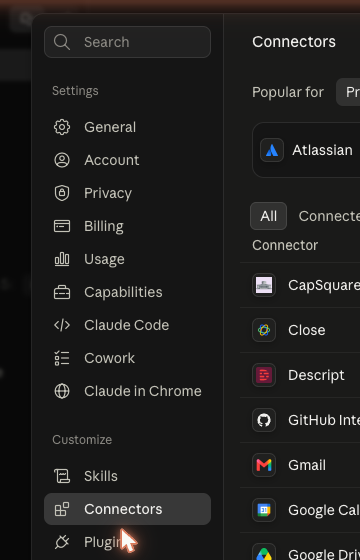
Under Customize, click Connectors.
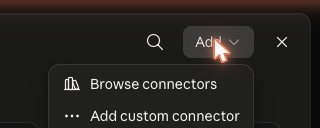
Click Add › Add custom connector.
No “Add custom connector”? (work or team accounts)
Your organization’s Claude admin has to add Pete once, for everyone. It’s two minutes on
their side: Settings › Admin settings › Connectors › Add custom connector, name it
Pete the Pigeon, URL https://mcp.petethepigeon.com/mcp, enable it for the org.
One click sends them the whole thing — steps, screenshots, the URL — so you and Pete are working together ASAP:
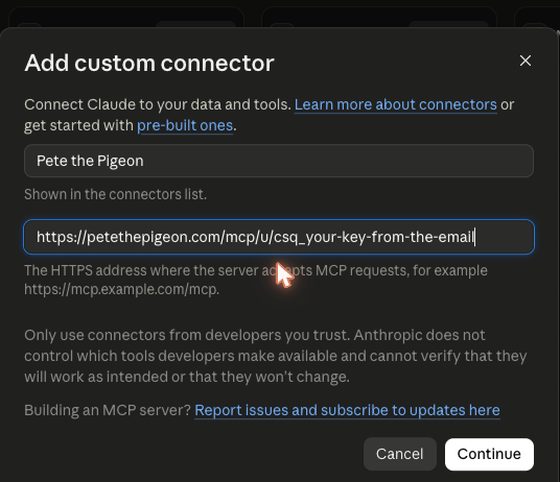
Name it Pete the Pigeon, paste this as the URL, click Continue. On the second step leave
Authentication on None (Claude detects it) and click Add.
your connector URL
Your connector URL is your login. Keep it to yourself.
New chat. Ask something. Click Allow if asked.
Let Claude draft your inbox. Once Pete is in your Outlook, link your mailbox at
this link (fills in with
your key, like the boxes above) — then in Claude say “Pete, draft replies to my unread
constituent emails.”
Connect Pete to ChatGPTPaid plan.
2-minute setup. Connecting Pete to ChatGPT is great for getting quick answers to questions only a wonk
could answer.
Back on Connectors, Create. Name: Pete the Pigeon. Paste this as the URL:
your connector URL
Your connector URL is your login. Keep it to yourself.
Authentication: none. Tick the trust box. Create.
New chat › + › More › switch on Pete.
Outlook
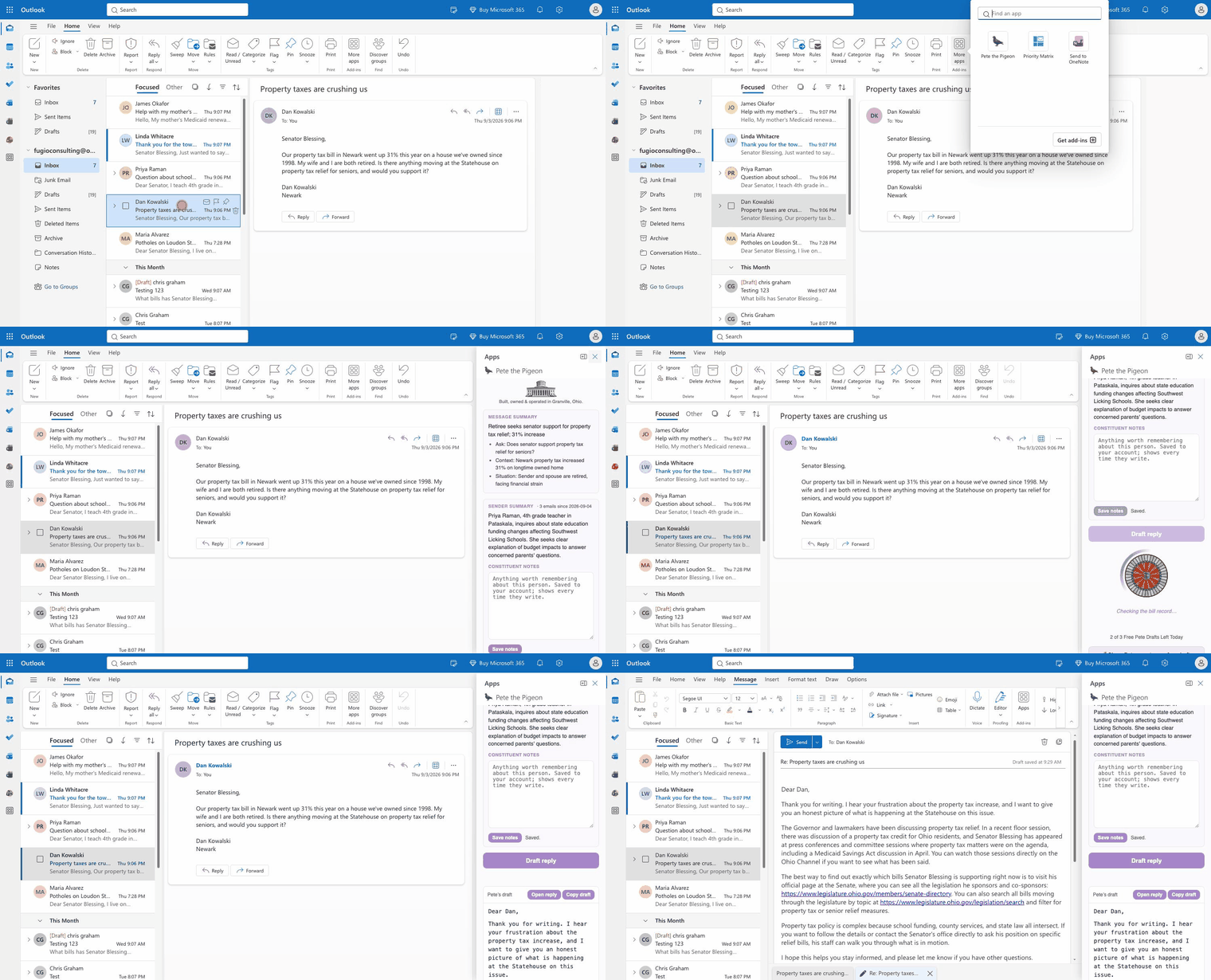
Open any constituent email, click Pete the Pigeon, and Pete drafts the reply in the legislator’s
voice, to their standards, fully researched, with sources linked to every corner of the Ohio Statehouse record. You
read it, edit it, send it. Pete never sends on his own, and he gets smarter the more you work with him.
The email, Pete’s summary of what the constituent wants, the reply Pete drafted, ready to edit and send.
Connect Pete to OutlookWeb or desktop. No admin needed.
Download once. No sign-in — Outlook already knows who you are.
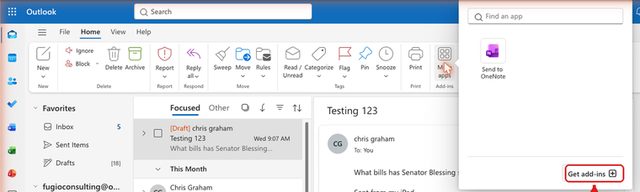
Home ribbon › More apps (four squares, right of Print).
Get add-ins.
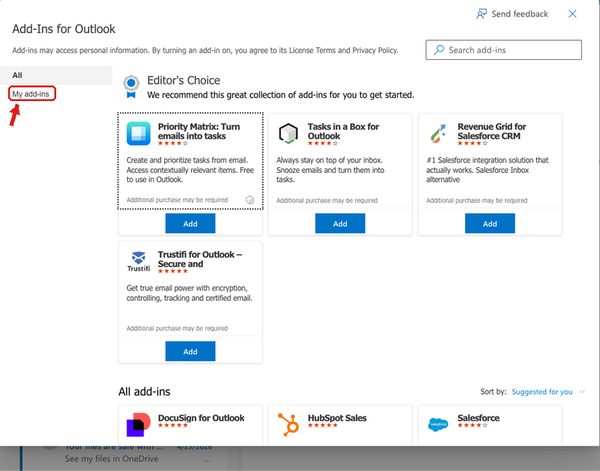
My add-ins.
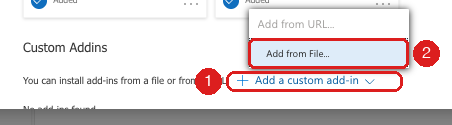
Scroll to Custom Addins › + Add a custom add-in › Add from File…
No “Custom Addins” section? Your office’s IT has custom add-ins switched off — send them the whole-office steps on the full Outlook page (Integrated Apps, one manifest for everyone, two minutes).
Pick Pete The Pigeon.xml › Install. Then open an email › More apps › Pete the Pigeon › Draft reply.
Everything Pete does in OutlookEvery button, what it does, what it costs.
Open an email first. Pete works on the message in the reading pane and follows you when you switch.
The pane
Message summary fills in on its own: what the sender wants, in bullets. Not constituent mail? It stays empty.
Sender summary and Constituent notes — Pete writes two lines on who this person is and what they write about, and counts how often they’ve written. Under it, your own notes about them: type, click Save (or just click away). Saved to your account, not the mailbox, so they show up every time that address writes, on any computer.
Draft reply — the answer, in your office’s voice, sources linked. Open reply puts it in a reply window; Copy draft puts it on your clipboard. Pete never sends.
The counter — “3 of 3 Free Pete Drafts Left Today.” Resets at midnight, Ohio time. At zero it says so and offers Pete Pro.
Share Pete — type a colleague’s address; Pete sends them the note about him, reply-to you. Each send: +2 drafts for you today, up to 3 sends.
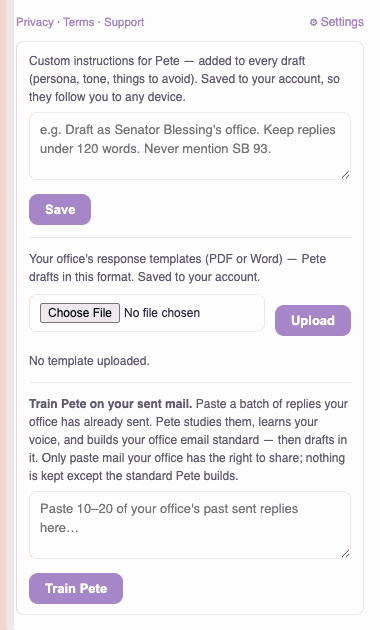
Settings ⚙ — your office’s voice
Custom instructions. A sentence or two Pete reads before every draft. “Respond in Senator Blessing’s style.”“Write every email as Rep. Brennan.”“Under 120 words. Never mention SB 93.” Save.
Response templates (PDF or Word). Upload the document your office already uses. Its format wins: your greeting, your closing, your structure, Pete’s research inside.
Train Pete on your sent mail. Open a reply your office sent (Sent Items) › + Add the open email. Do 5–20; − removes one. Train Pete on these N writes your office standard and saves it as the template. Three trainings a day free. The set is sent to Anthropic’s API once, to write the standard; it is not used to train any model.
Form letters get form replies. Add a form email and your reply to the set. When that form letter arrives again, Pete returns your reply word for word (only the name changes) — instantly, free, and the pane says so.
Birds of a feather (beta) — the whole inbox
Draft all — your 10 newest unread emails, one after another, each saved as a reply in Drafts.
Draft urgent & important — Pete ranks the unread pile like a chief of staff (real asks, deadlines, casework, officials and reporters first) and drafts the top ten.
Newsletters and notices are skipped. Nothing is drafted twice. One run of each a day free; batch drafts don’t touch your three.
Needs a Microsoft 365 mailbox. Personal outlook.com accounts can’t, and Pete says so.
Claude drafts your inbox too
Link your mailbox once at petethepigeon.com/outlook/link. After that, ask Pete in Claude to sort your inbox or draft replies to your unread mail — they land in Drafts, same as here, and Pete never sends.
Needs Pete open in your Outlook every couple of weeks so he knows he’s still welcome there — if Claude says the mailbox isn’t linked or Pete hasn’t been seen recently, open an email in Outlook and click Pete the Pigeon once.
Pete’s Email Efficiency Index (beta)
Score my last 2 years reads when each reply in Sent Items was started and sent — timestamps only, never the words — drops one-liners (under 45 s) and abandoned drafts (over 90 min), and scores the rest.
You get replies, minutes per reply, hours of email over the term, and — once Pete is in use — minutes per reply with him and the hours given back by Pete the Pigeon 🫡. (A reply counts as Pete’s when he drafted for you in the three hours before it was sent — a heuristic, not a stamp.)
Send this to my legislator — type their address; Pete sends the numbers, reply-to you. Leave the box ticked and your totals join the Ohio Statehouse Email Index: aggregate only, no office named, public at petethepigeon.com/email-index.
Microsoft 365 mailbox required.
Query Credits
Your Share Pete note carries a link that’s yours. A colleague asks for an invite through it, Chris sets them up, and when they send their first draft, 10 Query Credits land in your account and Pete emails you.
Query Credits keep. They spend themselves when your free three run out; the counter shows what you hold.
Pete Pro in Outlook is recognized through the add-in file from your setup page (it carries your account) — install that one, not a copy from a colleague.
When something’s off
Blank pane or “Add-in error”: close it, click Pete the Pigeon again.
Bills, votes, hearings, testimony, campaign money — and anything about how Pete works.
Want him in Claude, ChatGPT and Outlook? Free account. Need more? Pete Pro.
Pete is here to assist you up to 3 times a day for free, with your quota resetting at midnight, Ohio time. Upgrade to Pete Pro to lift your usage caps and get access to our frontier Advocacy Intelligence models.
StatehouseAI & Pete the Pigeon are built, owned and operated by Fugio Consulting in Granville, Ohio. Chris Graham — CEO Privacy · Terms